
Your audience is the heartbeat of your business. Quickly import your existing contacts from various platforms into one convenient space and start engaging immediately. Having all your contacts together means less hassle, more effective outreach, and building stronger relationships right away.
TABLE OF CONTENTS
How to Import Contacts
How to Create New Custom Fields
Bulk Contact Actions
Standard Contact Fields During Import
What is Contact Management in HighLevel?
Creating and managing contacts is one of the most important parts of keeping your CRM clean and useful. Adding accurate contact details, updating records when information changes, and removing contacts that are no longer needed helps your team work from reliable data.
Create contacts: Add new people or leads to your CRM so you can track and manage them in one place.
Edit contact details: Keep names, phone numbers, email addresses, and other information current.
Delete outdated records: Remove contacts that are no longer needed to keep your database organized.
Support better workflows: Accurate contact records help improve communication, automation, and reporting.
How to Create a New Contact
Creating a new contact allows you to start tracking a lead or customer inside HighLevel right away. Adding complete and accurate details from the beginning makes it easier to manage conversations, follow up with contacts, and keep your CRM organized.
Did you know? When a Form or Survey is filled out by a new lead, a new contact is automatically created!
Note: The fields available when creating a contact may vary based on how the account has been configured. If you need additional fields, use the appropriate custom fields configured for your account.
1. Navigate to Contacts > Smart Lists from the left-side menu.
2. Click + Add Contact.
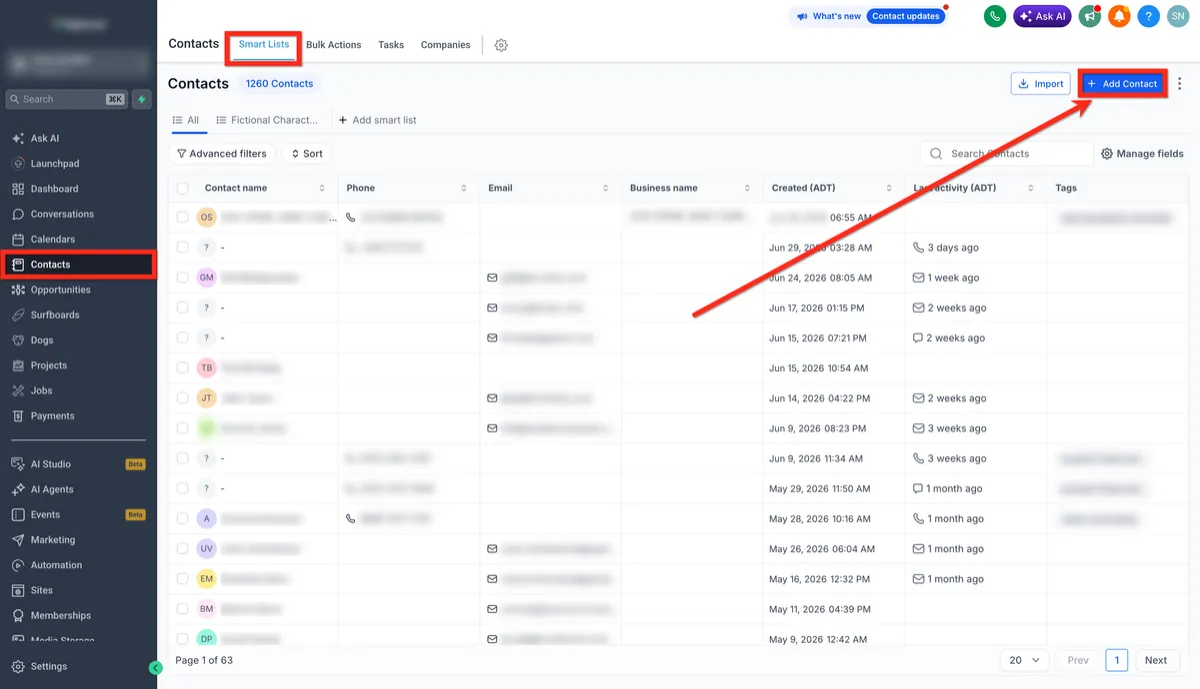
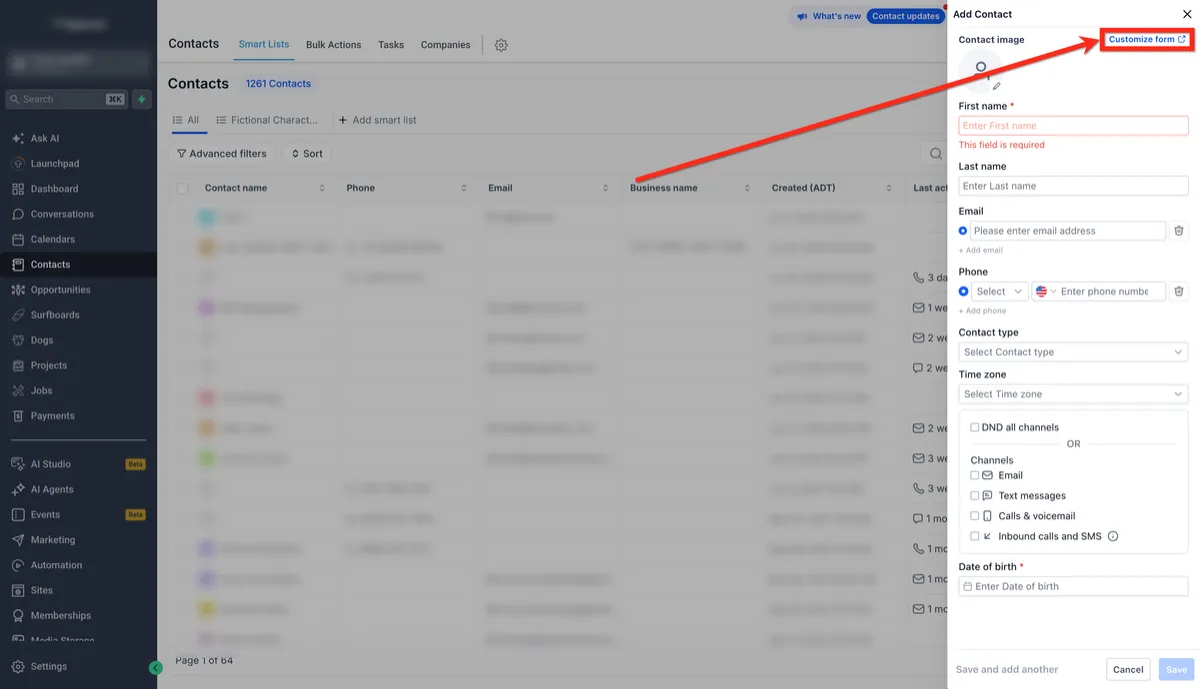
3. Enter the contact's details, such as:
First name
Last name
Email address
Phone number
Additional available fields as needed
4. Manage which fields appear when adding new Contact by click on the Customise Form button.
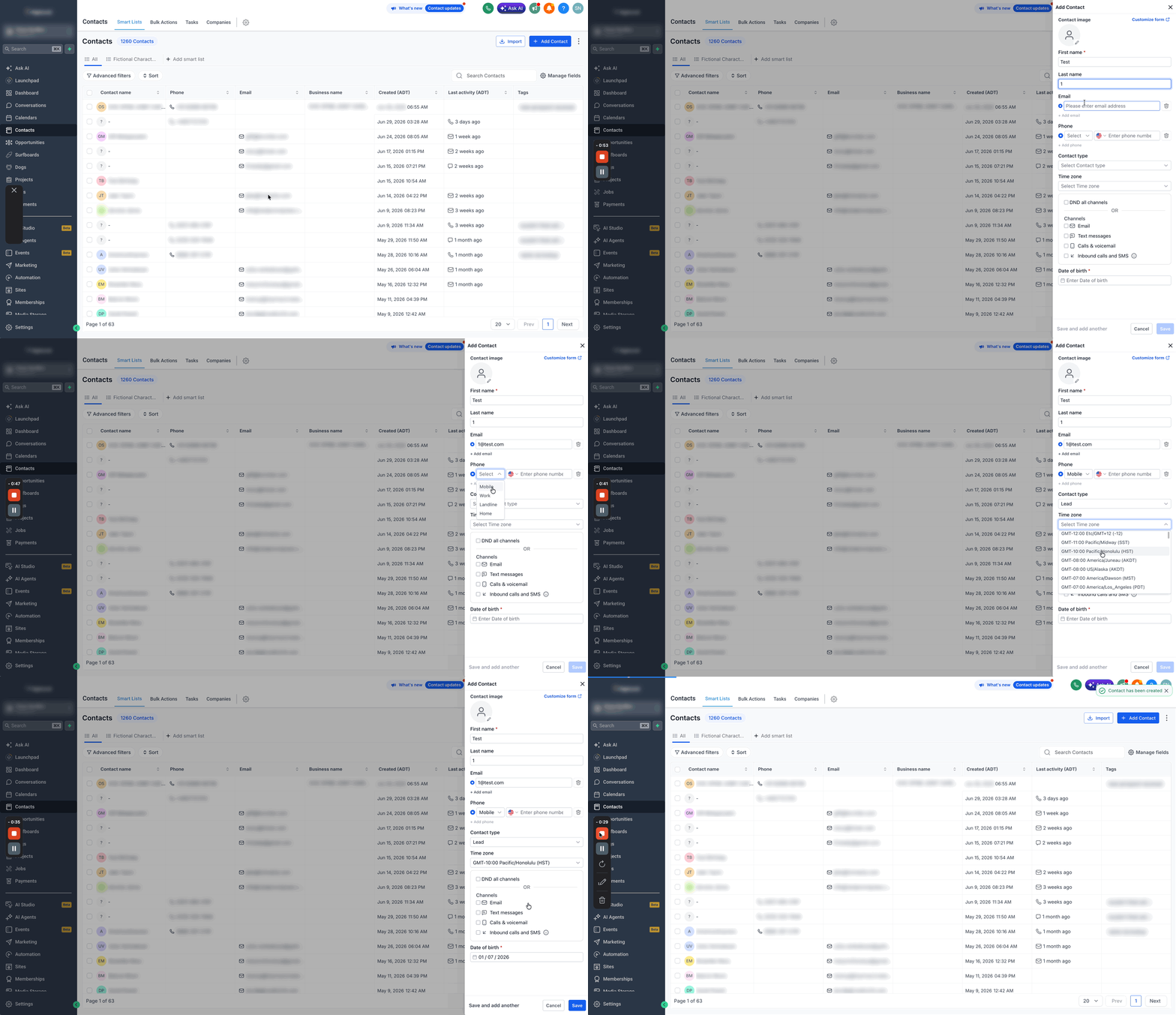
5. Review the information for accuracy.
6. Click Save to create the contact.
Edit Existing Contact
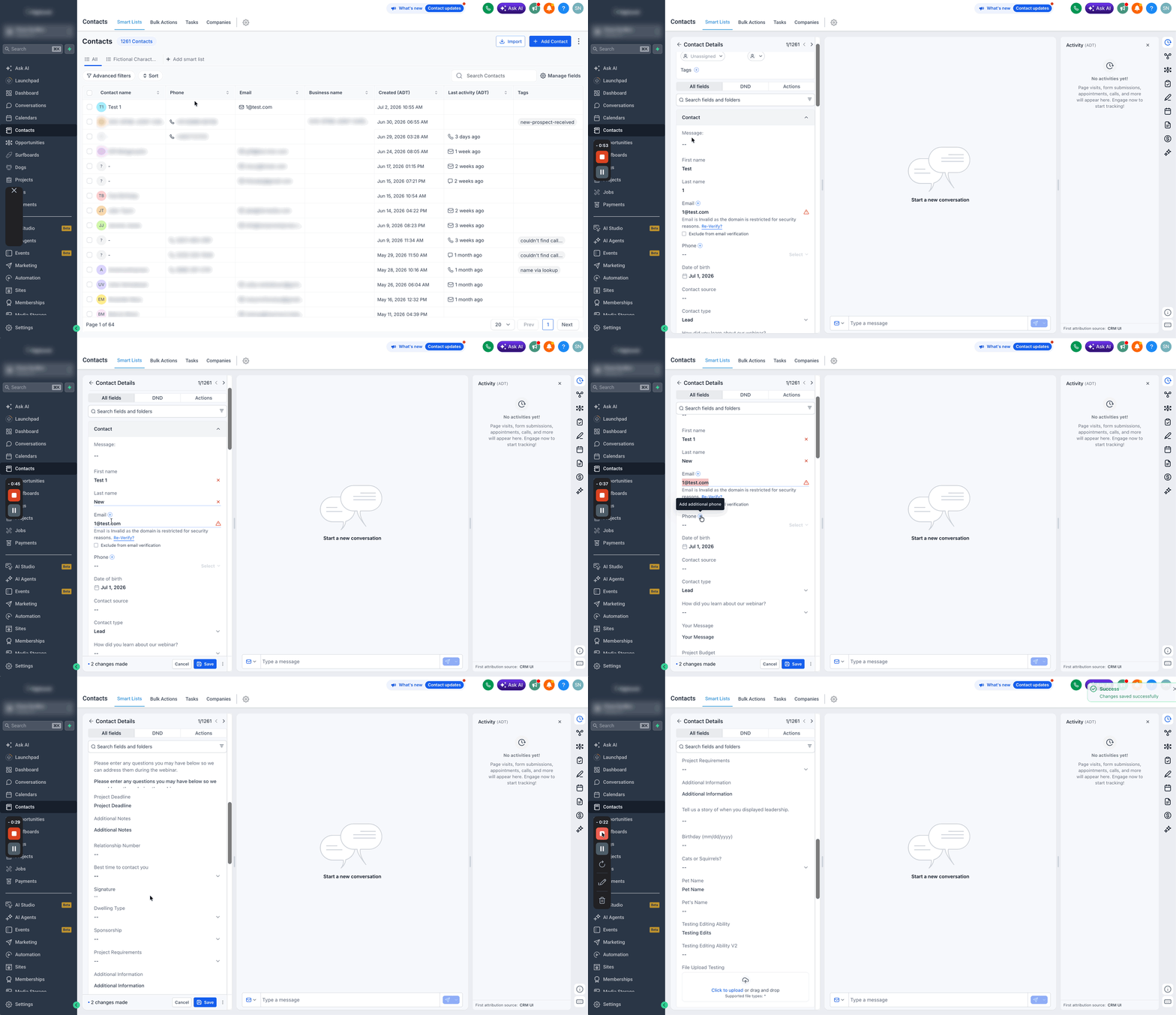
Editing a contact helps ensure your records stay accurate as customer details change over time. Keeping contact information updated improves communication, reduces mistakes, and helps your team work with the most current information available.
Tip: Update contact information as soon as you learn about changes to help keep your CRM accurate and useful.
1. Navigate to Contacts > Smart Lists.
2. Search for or select the contact you want to update.
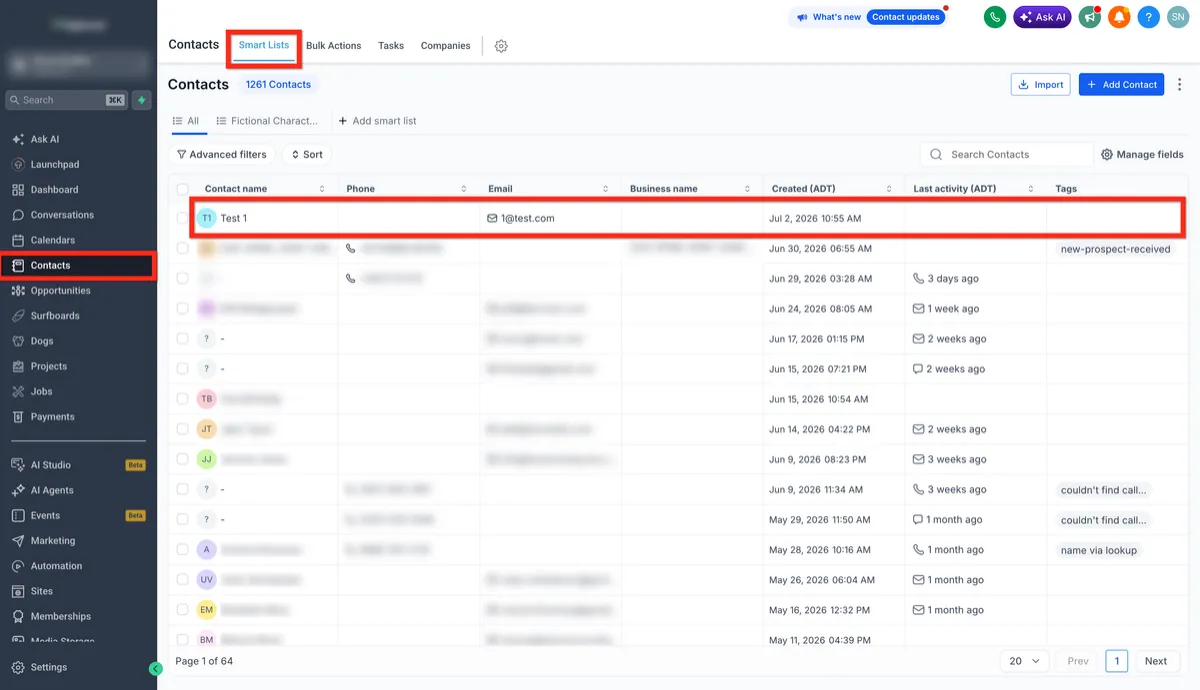
3. Click on the Contact Name to open the contact record.
4. Edit the necessary contact details.
5. Save your changes.
Delete an Existing Contact
Deleting a contact helps remove records that are no longer needed, which can keep your CRM cleaner and easier to manage. Before deleting a contact, it is important to confirm that the record is no longer required, because removing it can affect associated activity and follow-up processes.
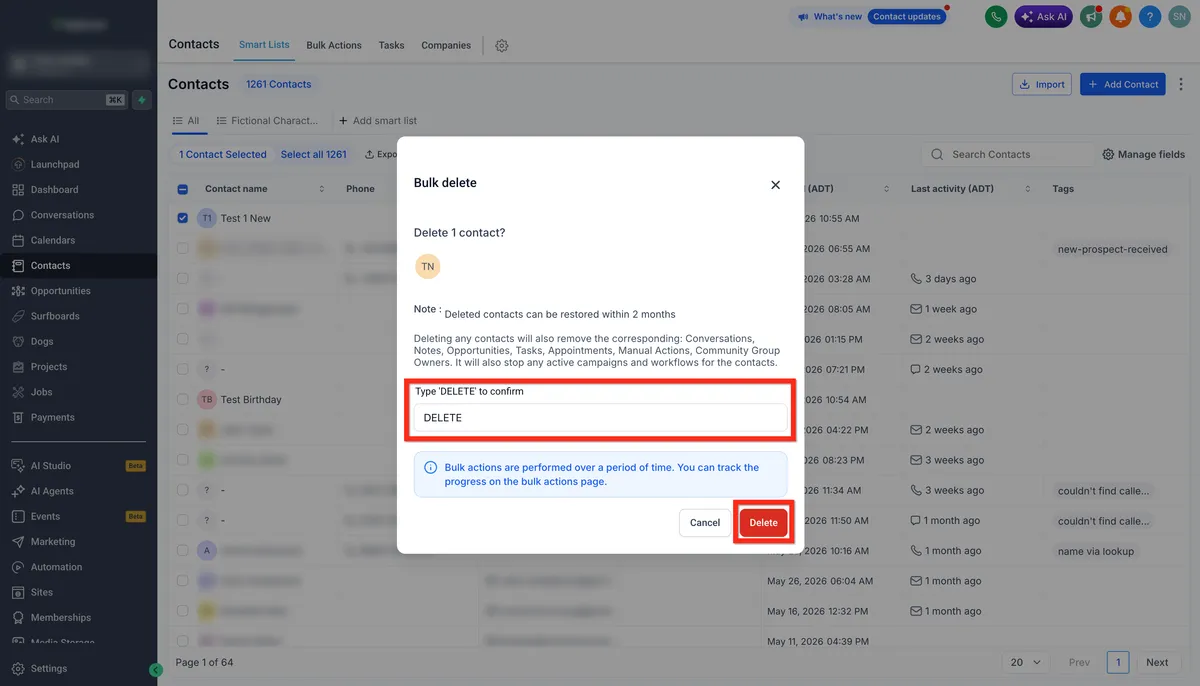
Note: Deleted contacts can be restored within 2 months.
Deleting any contacts will also remove the corresponding: Conversations, Notes, Opportunities, Tasks, Appointments, Manual Actions, Community Group Owners. It will also stop any active campaigns and workflows for the contacts.
iFollow these steps to delete a contact:
1. Navigate to Contacts > Smart Lists.
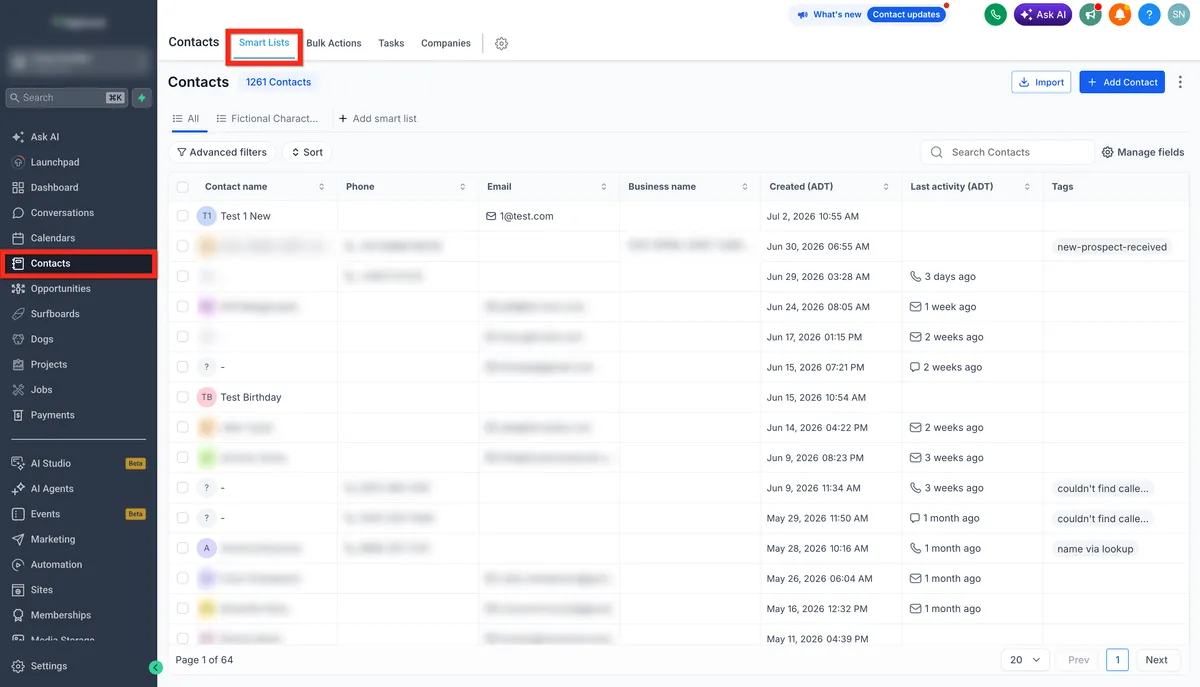
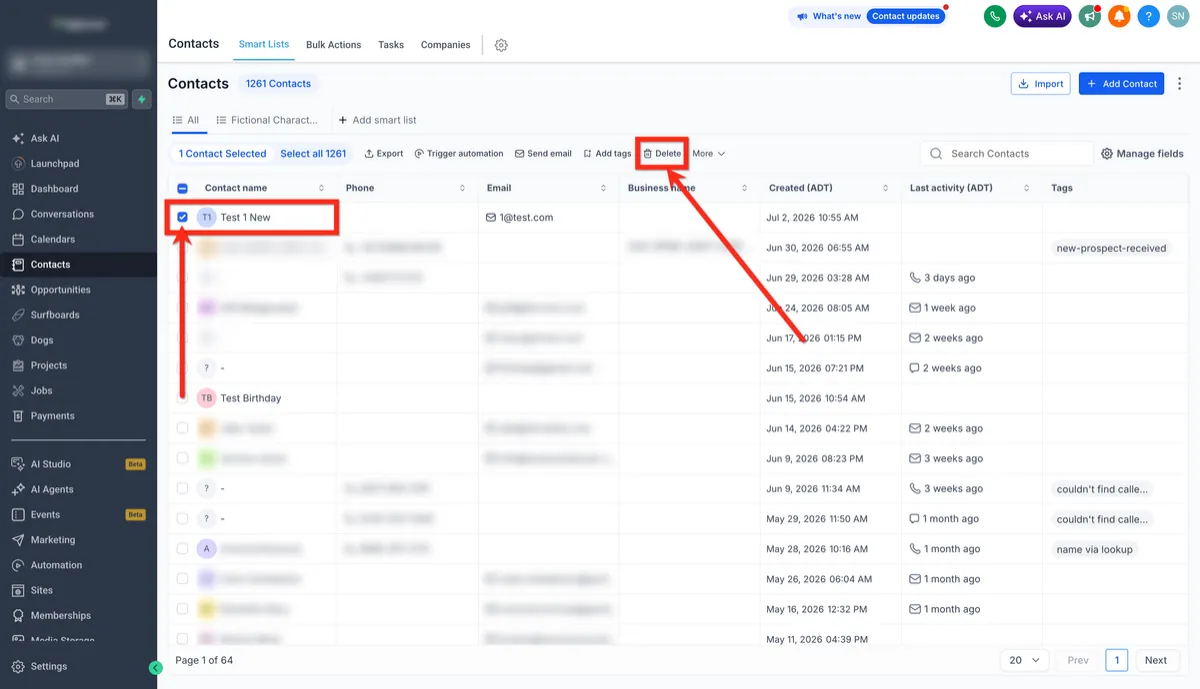
2. Select the contact you would like to delete using the checkbox to the left of the name. Then click the Delete button
3. Confirm for action by typing DELETE in the popup window. Then click the Delete button.
Frequently Asked Questions
Q: Can I create more than one contact at a time?
For multiple contacts, importing contacts is the better option instead of creating them one by one manually.
Q: Why do I see different fields when creating a contact?
The fields shown in the Add Contact form can vary based on how the account is configured, including any custom fields that have been added.
Q: What happens when I delete a contact?
Deleting a contact removes the record from your CRM and may also affect associated records, campaigns, or workflows connected to that contact.
Q: Can I restore a deleted contact?
Deleted contacts can be restored within 2 months.

© 2026 DTI Business Management | All Rights Reserved